Purchase approvals in SharePoint, Power Apps and Teams
Staff raise purchase requests from their phone, managers and finance approve them in Teams, and each request keeps its quote, decisions and timeline in one SharePoint list. It runs on standard Microsoft 365 licences.
What it does
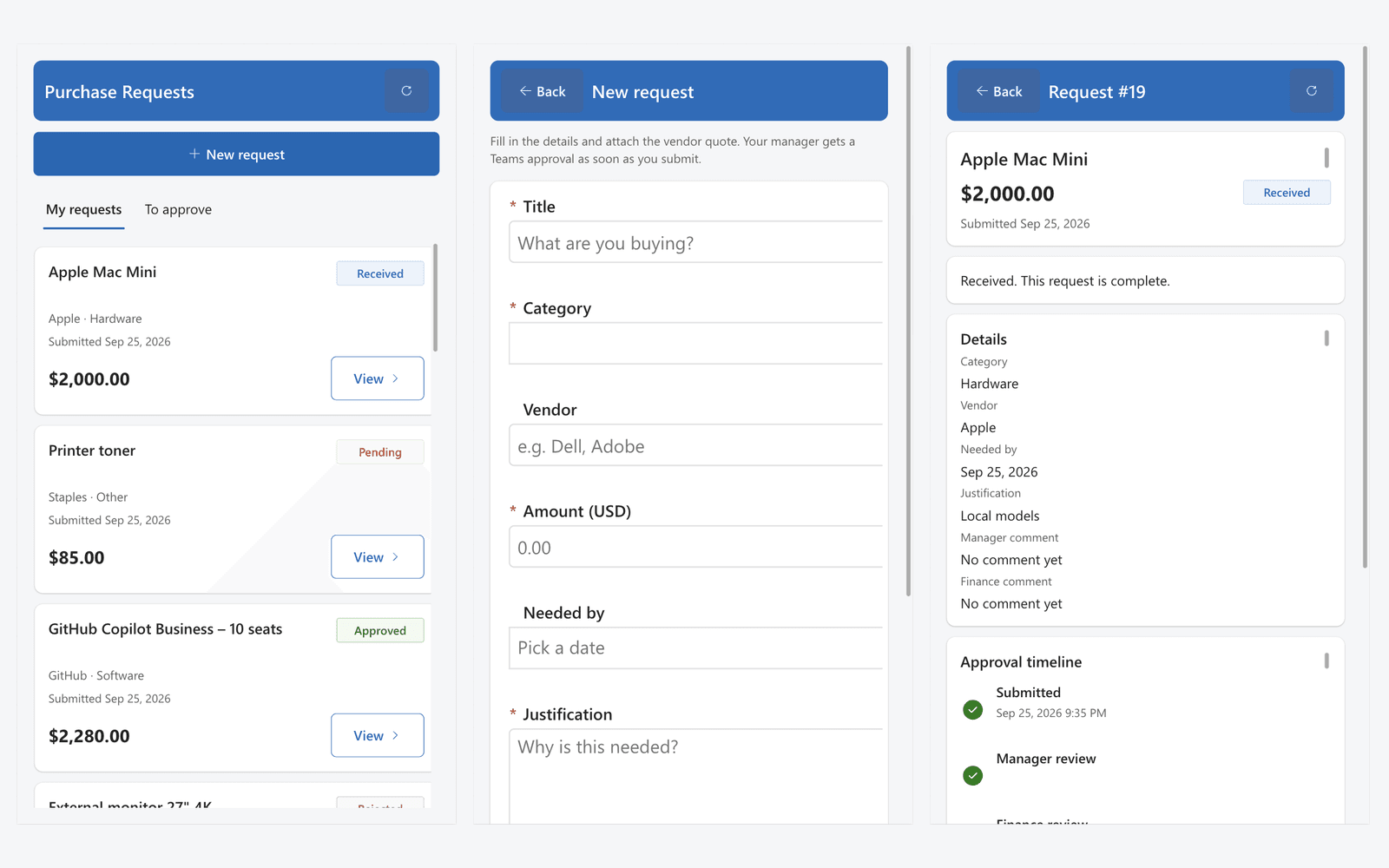
Staff raise a purchase request in a Power Apps app, on their phone or in a browser, with the vendor quote attached. A Power Automate flow sends it to their manager as an approval in Teams. Requests over $1,000 go to finance for a second approval, and the requester gets the decision in a Teams message.
Every request, quote, decision and comment is stored in one SharePoint list. The app uses only standard connectors, so it runs on the Power Apps and Power Automate rights included in most Microsoft 365 business plans.
Where purchase requests get stuck
Without an app, a purchase request is an email or a chat message and the quote is an attachment. Nobody can see what is pending or who is holding it. A purchase that also needs finance gets forwarded a second time, and when someone later asks who approved it, the answer is in a mailbox.
The request app
The app has three screens. The home screen lists a person's requests with a coloured status, and a second tab lists requests waiting for their approval. The new request form needs a title, category, justification and an amount above zero before it can be submitted, and it takes the quote as an attachment.
A request's details screen shows its status, the approvers' comments, the quote and a six-step timeline from submission to delivery. Once a request is approved, the person who raised it marks it ordered and then received.
One list for every request
Each request is a row in a SharePoint list with its amount, category, vendor, status, approvers and their comments. Views show a person's own requests, those pending approval and those ready to order. Anyone with access can filter the list or export it to Excel.
Approval routing
A new row in the list starts the flow. It reads the approvers and the finance threshold from a settings list and sends the manager an approval with the title, amount, vendor, category, needed-by date and justification. A rejection is recorded with its comment. An approval over the threshold moves the request to finance, and finance's decision sets the final status. The requester then gets a Teams message with the outcome, any comment and a link to the request.
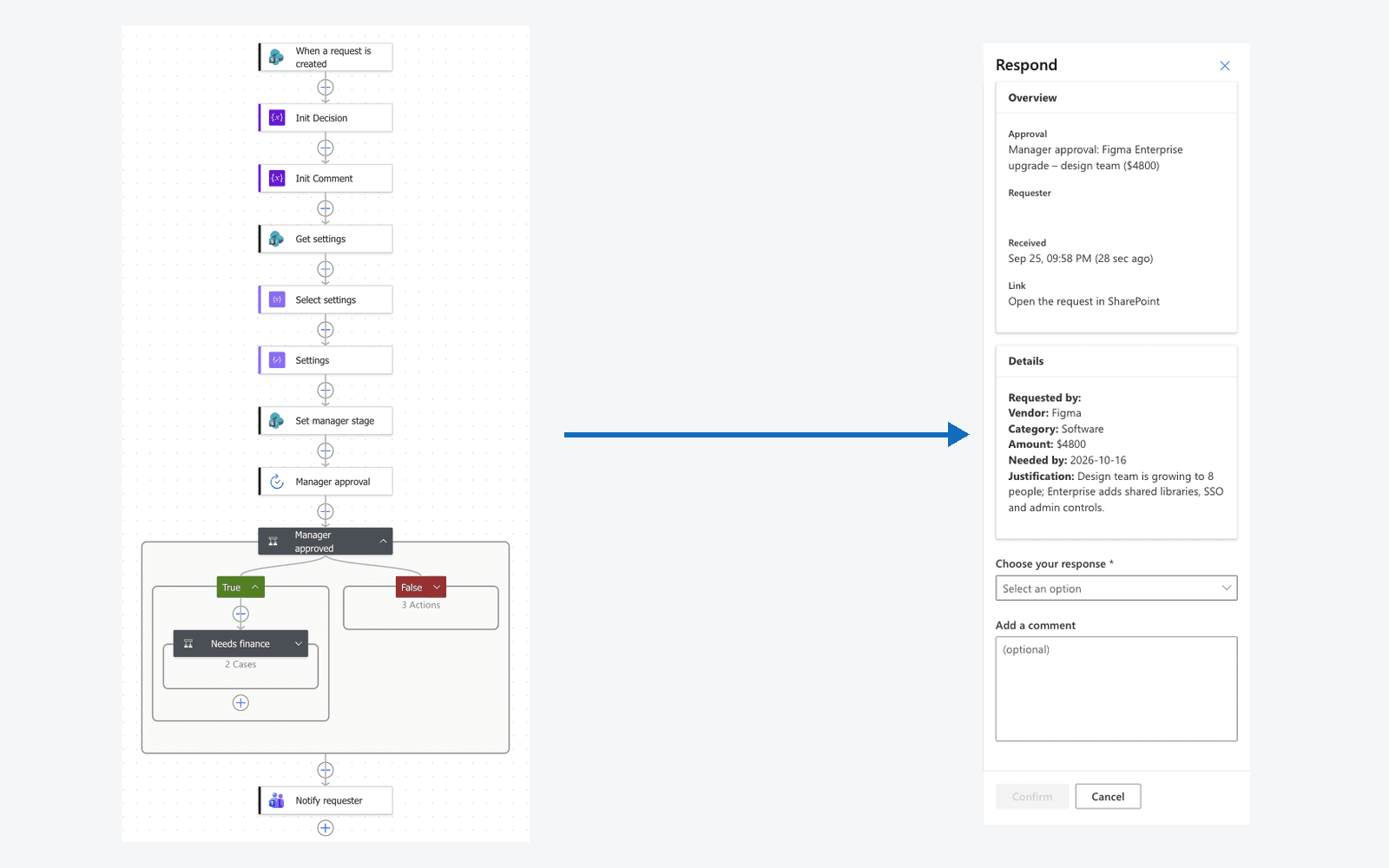
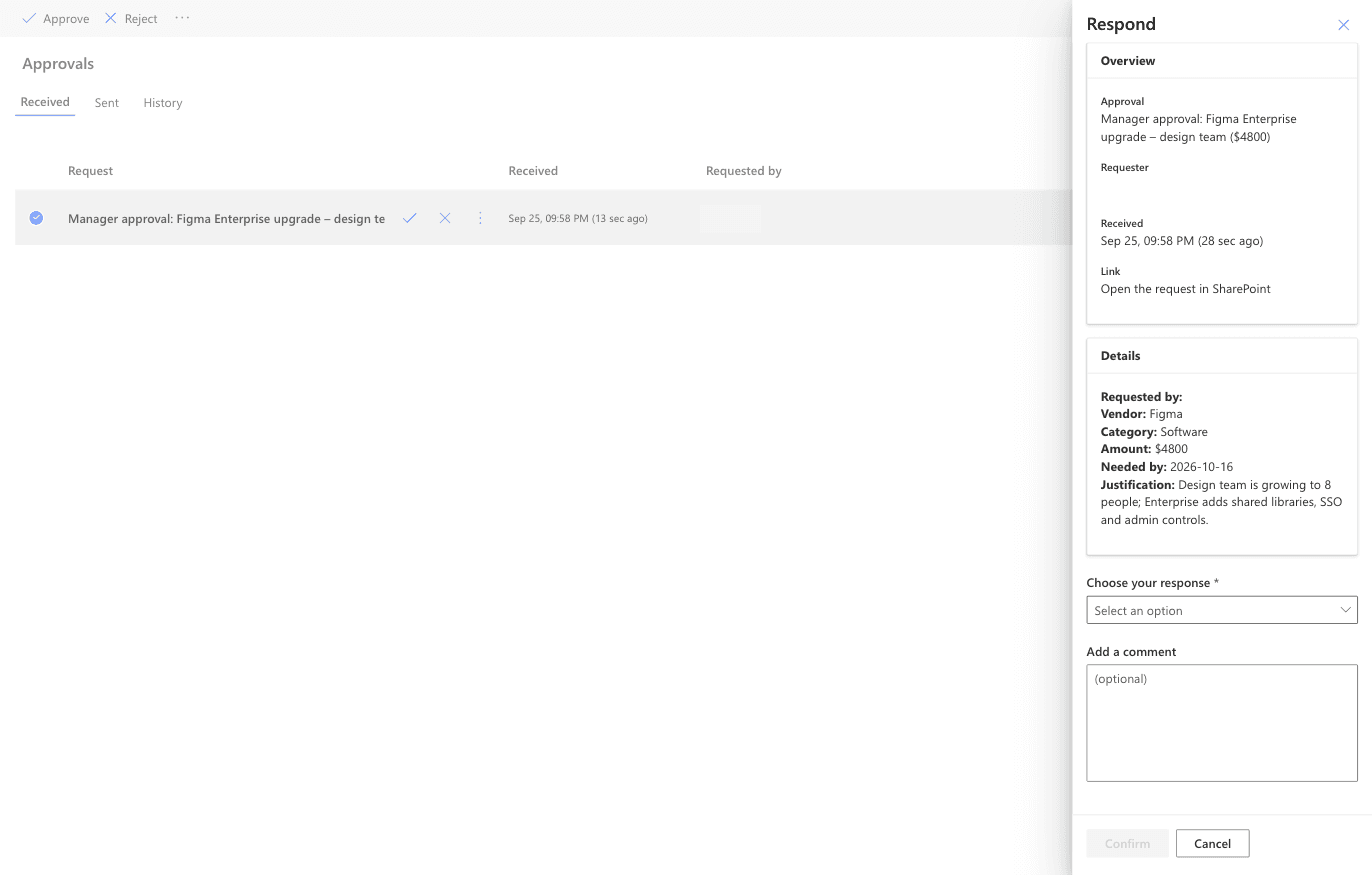
The approval reaches the manager in Teams, in Outlook and on the Power Automate approvals page. They approve or reject from whichever they have open, with an optional comment.
A request from start to finish
- Staff member. Opens the app, fills in a new request, attaches the quote and submits. The request shows as pending.
- Manager. Gets an approval in Teams or Outlook within a few minutes and approves or rejects it.
- Finance. Gets a second approval straight after the manager's, for amounts over $1,000.
- Staff member. Gets the decision in Teams, sees the status and timeline update in the app, and later marks the order placed and received.
Why it's built this way
The requests live in a SharePoint list because everyone can already open one and export it to Excel, and a list keeps the app on standard licences. Dataverse would add security roles and relational data that this process doesn't need.
The approvers' emails and the $1,000 threshold sit in a settings list, so changing them means editing a row instead of the flow. Status (pending, approved, rejected, ordered, received) and approval stage (manager, finance, done) are separate fields, and together they drive the app's timeline and its approvals tab.
Only the flow can approve a request. Every decision goes through an approval record, and the app can only record the ordered and received steps, for the person who raised the request.
The SharePoint setup is a script, the flow is a definition file and the app screens are source files, so the app can be rebuilt in another Microsoft 365 environment.
Licensing
The app uses the SharePoint, Approvals and Teams connectors, which are all standard, with a canvas app on SharePoint data. On standard licences the flow checks for new requests on an interval, so an approval arrives within a few minutes of submission.