ERPNext v16 POS: Sales Invoice vs POS Invoice
· Yajat Gulati · 9 min read
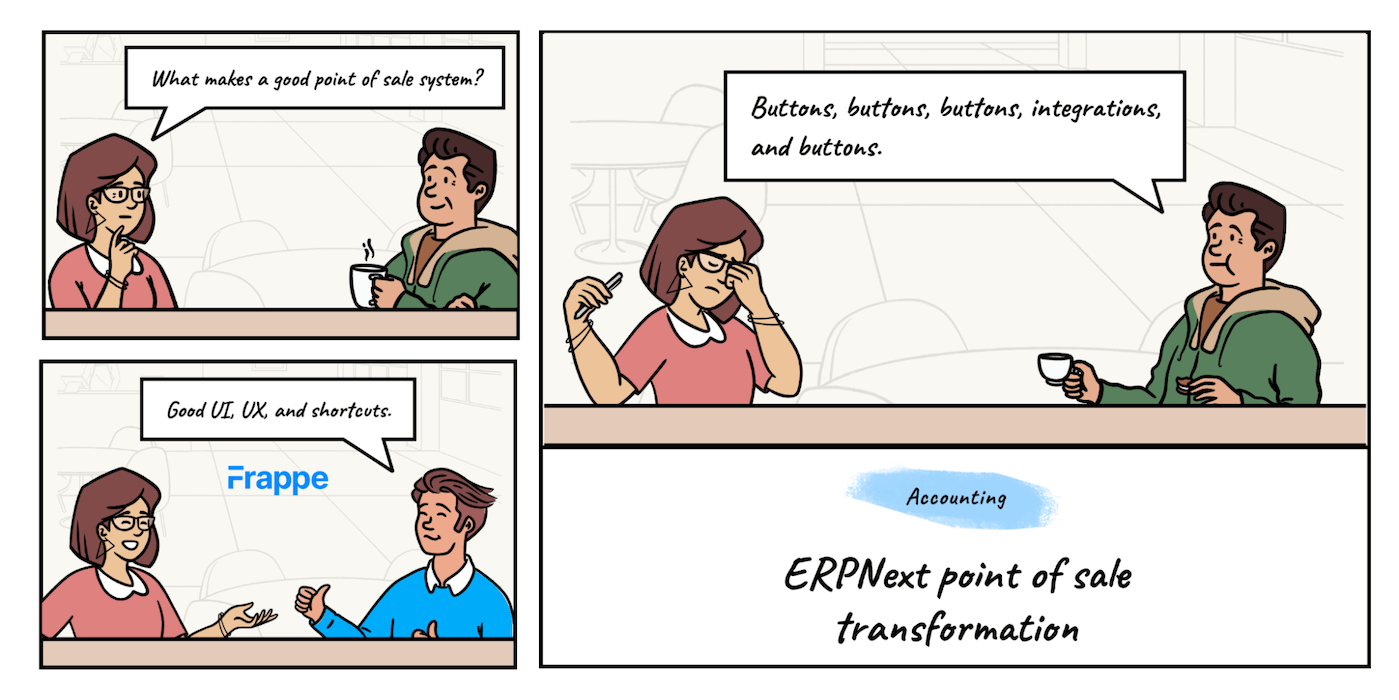
Cover artwork: Frappe's official Point of Sale redesign story.
An existing ERPNext v15 store keeps creating POS Invoices after upgrading to v16. It does not automatically move to per-receipt Sales Invoices.
ERPNext v16 adds the choice in POS Settings. Sales Invoice is presented as the option for new setups, while an upgraded v15 site remains on POS Invoice until an administrator deliberately switches it. Check Invoice Type Created via POS Screen before the first post-upgrade shift.
Both modes are active product choices in v16.33. POS Invoice remains the recommended option in ERPNext for high-volume transactions. Sales Invoice mode gives each receipt its own submitted Sales Invoice and posts accounting at checkout. The choice affects GL, Stock Ledger, closing, reports, cancellations and the volume of documents the system must handle.
For changes outside Point of Sale, read our full ERPNext v16 vs v15 comparison.
What an existing v15 store retains
ERPNext v15 creates a POS Invoice for each completed retail sale. Those invoices wait for POS Closing Entry, which consolidates them into Sales Invoices and posts the accounting. Version 16 preserves that workflow for upgraded stores.
This makes the initial upgrade less disruptive. Cashiers continue creating the same DocType, existing POS reports keep reading the same records, and the close retains its familiar role in posting GL and stock. Custom integrations built around POS Invoice still need a v16 compatibility review, but they do not face an automatic change of document type on day one.
POS Invoice has not been deprecated in v16. It remains available in POS Settings, its consolidation workflow remains intact, and ERPNext explicitly recommends it for high-volume use. Stores can stay on it while they evaluate whether per-receipt Sales Invoices fit their accounting and reporting model.
The switch should happen outside trading hours. ERPNext blocks an invoice-mode change while a POS Opening Entry is open. In the current v16 workflow, an open register elsewhere on the site can also block the change. Close every register, confirm the closing entries, then change the setting.
Two modes with different posting times
The cashier view is shared, but the accounting path is different.
| Behavior | POS Invoice mode | Sales Invoice mode |
|---|---|---|
| Document at checkout | POS Invoice | Sales Invoice created through POS |
| GL posting | Deferred until consolidation | Posted when each receipt is submitted |
| Stock Ledger posting | Deferred until consolidation | Posted per receipt when Update Stock applies |
| POS Closing Entry | Consolidates POS Invoices into Sales Invoices | Links submitted Sales Invoices and closes the opening entry |
| Document volume | Lower after consolidation | One submitted Sales Invoice per receipt |
| Standard report path | POS Register | Sales Register |
| ERPNext guidance | Recommended for high-volume transactions | Suits businesses that want immediate per-receipt posting |
Sales Invoice mode posts each retail receipt as an ordinary Sales Invoice marked as created through POS. GL Entries are made on submission. Stock Ledger Entries are also made at that point when the POS Profile uses Update Stock. Finance and stock teams can therefore see the effect of each sale during the shift instead of waiting for the register to close.
POS Closing Entry still matters in this mode. It groups the shift's receipts, links them to the close and closes the POS Opening Entry. It does not create another consolidated Sales Invoice because each receipt has already posted.
Cancellation follows that link. A Sales Invoice attached to a submitted POS Closing Entry cannot be cancelled independently. The close must be unwound first, which protects the relationship between the cashier shift and the receipts it contains.
POS Invoice mode keeps posting at the end of the shift. The individual POS Invoices wait for consolidation, then the consolidated Sales Invoice posts GL and stock. This reduces the number of submitted Sales Invoices and concentrates posting work in the close.
Sales Invoice mode spreads posting across checkout but creates more ledger-facing documents. POS Invoice mode keeps checkout documents lighter and moves more work to consolidation. Test with the store's actual peak receipt volume, tax mix and closing schedule before choosing.
Returns and open registers need a switch plan
ERPNext keeps ordinary sales within the active mode. Once Sales Invoice mode is enabled, the POS view creates Sales Invoices. In POS Invoice mode, it creates POS Invoices. Returns continue to follow the DocType of the original sale so that a customer can return an item sold before the switch.
A return against an older POS Invoice can therefore appear during a later Sales Invoice shift. ERPNext creates the necessary Sales Invoice credit note so the return reaches the ledger without waiting for a new consolidation cycle. Include a return from before the switch, a same-day return after the switch and a partial return in the acceptance run.
Sales Invoice mode also enforces the register boundary more strictly. The receipt needs a POS Profile and an active POS Opening Entry for the cashier. The opening entry must be for the current day. Full payment is required unless the profile allows partial payment.
An overnight register that continued to work in POS Invoice mode may refuse a new receipt after the store moves to Sales Invoice mode. Store managers should close registers daily and include the stale-register message in cashier training.
Closing changes beyond consolidation
POS Closing Entry can now show separate tables for POS Invoices and Sales Invoices. In POS Invoice mode, the close gathers invoices that need consolidation and any POS-related Sales Invoice credit notes. In Sales Invoice mode, it gathers the submitted Sales Invoices that have not yet been linked to a closing entry.
The tax summary also changes from v15. Version 15 separates closing taxes by account head and tax rate. Version 16 groups them by account head and uses the tax amount after discount. If one tax account carries more than one rate, the closing view can combine those rates into a single row. The Tax Rate column is no longer present.
Finance teams comparing v15 and v16 closes should reconcile the tax summary to the underlying invoices instead of expecting the same row layout. GST setups that post several rates to one account need this check.
Backdated closing deserves its own acceptance test in v16.33. A supplied posting date and time may be replaced by the current time during the close. Verify the final posting date on POS Closing Entry and on any consolidated Sales Invoice before relying on backdated close procedures.
POS Register does not cover Sales Invoice mode
The standard POS Register remains a POS Invoice report in v16.33. Sales created directly as Sales Invoices do not appear there.
Sales Register is the standard report for Sales Invoice mode. It shows the individual receipts because each checkout creates its own submitted Sales Invoice. That differs from POS Invoice mode, where consolidation can produce fewer Sales Invoice rows.
This report change belongs in the rollout notes. A store can switch successfully, see the correct GL and Stock Ledger entries, then assume sales are missing because the team opens POS Register out of habit. Update saved reports, exports, scheduled emails and management dashboards before enabling Sales Invoice mode.
Retail integrations need the same review. A downstream system that reads only POS Invoice will miss Sales Invoice mode receipts. Loyalty analysis, cancellation tools, tax exports and store dashboards should accept the DocType selected in POS Settings.
The cashier view changes in both modes
Version 16 gives the POS view a broader usability pass, regardless of how receipts post.
New Invoice becomes the primary action. The old Full Screen and Save as Draft menu actions are removed. A POS Profile setting controls what happens when a cashier starts another invoice with an unfinished cart: ask, save or discard.
Stores that hide product images now get a table with Name, Price, UOM and Quantity Available instead of the v15 letter tiles. Search has a clearer empty state, and Recent Orders puts the customer first and adds partly paid filtering.
The payment view divides the screen between modes of payment and a fixed numpad. The numpad supports minor-unit entry, a sign key and a keypress sound. The rounded cash shortcut amounts from v15 are gone. Cashiers who relied on those shortcuts will feel this change immediately, so a short practice shift is worthwhile.
Remaining Amount and Change Amount now have separate labels and colours. Additional POS fields move into an Update Additional Information dialog, with missing mandatory values returning focus to the dialog. If a custom field exists only on POS Invoice or only on Sales Invoice, verify it in the selected mode before opening the store.
The refreshed colours work better with dark mode. ERPNext POS still depends on a working connection. Stores with unstable links should test failed submissions, retries and duplicate prevention at the network quality of each location.
Settings and integrations to review
An upgrade or mode switch should include more than the invoice-type field.
The setting for GL entries on change amounts moves from Accounts Settings to POS Settings. ERPNext carries the existing value forward where it is available, but every store should compare a cash sale with change before and after upgrading. Confirm whether change is netted from the cash line or posted through separate entries, then reconcile the cashier total to GL.
The default mode-of-payment setting is also renamed and its wording is reversed. Recheck each POS Profile rather than assuming an old customization still means the same thing.
Review these dependencies before switching to Sales Invoice mode:
- POS Register, Sales Register and any custom retail reports.
- Integrations that read only POS Invoice.
- Loyalty reports grouped by invoice type.
- Closing workflows that expect a merge log or one consolidated Sales Invoice.
- Cancellation procedures for receipts already attached to POS Closing Entry.
- Custom fields configured on only one invoice DocType.
- Change-amount GL entries and default modes of payment.
- Returns against sales made before the switch.
How to choose the mode
Keep POS Invoice mode through the v15 to v16 upgrade. Complete the upgrade checks first, then compare both modes in staging with the same products, taxes, payment mix, returns and cashier shift.
Measure checkout response time, closing time, document volume and report performance. Reconcile GL, Stock Ledger, loyalty points, tax summaries and tender totals. Run the test at peak store volume, not with a handful of sample receipts.
POS Invoice remains the safer starting point for a high-volume store and for an existing v15 implementation built around consolidation. Sales Invoice mode suits a business that wants every receipt posted and visible as a Sales Invoice during the shift. ERPNext v16 supports both, and the upgrade leaves the existing store on the workflow it already knows.
Frappe's ERPNext v16 release page provides the wider release context. Frappe's Point of Sale redesign story covers the product's earlier retail design direction.