ERPNext v16 Banking: inside the new reconciliation app
· Yajat Gulati · 8 min read
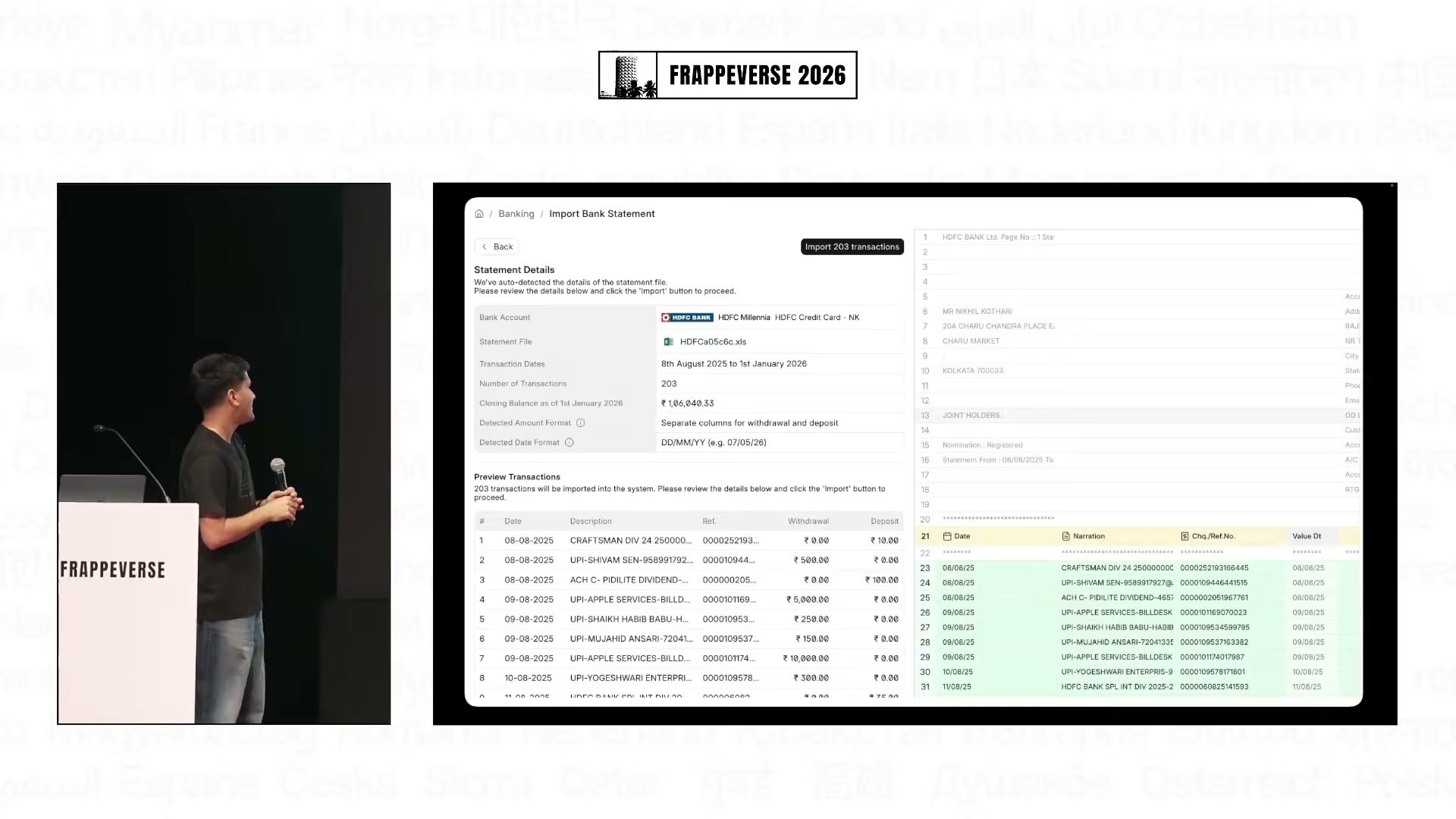
Cover image: Frappe's official ERPNext keynote at Frappeverse 2026.
Bank reconciliation usually becomes difficult in the spaces between records. The statement sits in one file, unmatched Bank Transactions in another view, and the Payment Entry or Journal Entry that explains a line somewhere else in ERPNext.
The Banking app in ERPNext v16.33 puts that work into a focused view. Finance teams can import a statement, review Bank Transactions, match them to ERPNext documents, create missing entries and inspect the reconciliation position without rebuilding the same context across several forms.
These capabilities are available in v16.33. Frappe's original v16 release material does not date every Banking feature, so a team on an earlier v16 point release should confirm which import and rule workflows are available before planning its rollout.
For the wider release context, read our ERPNext v16 vs v15 comparison.
ERPNext v15 banking vs the v16.33 Banking app
ERPNext v15 already has Bank Transaction, Bank Statement Import and Bank Reconciliation Tool. Version 16.33 keeps those accounting records and adds a dedicated Banking view around them.
| Workflow | ERPNext v15 | ERPNext v16.33 |
|---|---|---|
| Reconciliation | Desk-based Bank Reconciliation Tool | Focused view with matching, balances, clearance summaries and action history |
| CSV statements | Existing statement import | Column mapping and transaction preview in Banking |
| PDF statements | No comparable visual table-selection flow | Statement pages with editable table regions and row preview |
| MT940 | No comparable statement option | Direct support for structured MT940 statements |
| Recurring lines | Manual review and existing matching tools | Prioritized Bank Transaction Rules using description and amount conditions |
| Existing tool | Primary reconciliation view | Still available while teams adopt the Banking app |
The General Ledger does not move into a separate product. Bank Transactions, Payment Entries, Journal Entries and accounts remain ordinary ERPNext records. Banking gives the finance team a view designed around the close.
A reconciliation view that keeps the context
The Banking view starts with a company and bank account. It brings together the bank balance, clearance summary, reconciliation statement and a filterable list of Bank Transactions.
From that list, a user can match and reconcile a transaction, record a payment, create a transfer or bank entry, undo a reconciliation and inspect entries that were cleared incorrectly. An action log helps a reviewer follow what happened during the session.
This reduces a familiar source of close friction. An accountant can start with an unexplained statement line, inspect the candidate ERPNext documents and complete the reconciliation without repeatedly returning to a general list and recreating its filters.
The old Bank Reconciliation Tool remains available and points users toward the new Banking app. Finance teams can compare both views on the same account before changing their close procedure, including companies with custom roles, bank formats or review controls built around the older workflow.
A pilot should use an account and period that the finance team already understands, then compare balances, cleared entries and unmatched items between the two views. The final reconciliation is the measure of success.
CSV import adds a clearer review stage
CSV remains the most predictable statement format. The Banking app lets the user upload the file, map bank columns to ERPNext fields and preview the interpreted transactions before import.
Banks describe the same information differently. One file may use debit and credit columns, another may use one signed amount, and a third may label the narrative as description, particulars or memo. The mapping stage makes those differences visible before they become Bank Transactions.
Finance should still reconcile control totals before accepting the import. Compare the first and last transaction dates, total debits, total credits and statement balance. Check duplicate handling by importing the same file twice in a test company. A clean preview is useful, but it does not replace a control-total check.
PDF import solves a real problem with variable inputs
Many banks still provide PDF as the easiest or only statement export. ERPNext v16.33 can display a PDF statement page, identify a transaction table and let the user adjust the selected region. The rows from that region appear in a preview where columns can be mapped before import.
If ERPNext includes a page heading, footer or second table, the user can redraw the box around the transaction area and extract it again. Password-protected statements are also supported through a statement password on Bank Account.
PDFs remain less predictable than CSV or MT940. A bank can change its statement layout without notice. Repeated page headers, merged cells, wrapped descriptions, regional date formats and negative amounts in separate columns can all alter the result. A scanned statement may contain an image rather than a readable table.
Treat each bank and statement design as its own import template. Test several months, including a multi-page period and a statement with reversals or fees. Compare row count and amount totals with the original PDF before creating any accounting document. If the bank offers CSV or MT940, prefer the structured format for a recurring close.
Statement passwords also create a control question. Decide who can view or change the password on Bank Account, and whether storing it in ERPNext fits the company's security policy. A finance convenience should not quietly widen access to encrypted statements.
MT940 gives structured statements a direct path
MT940 is a structured bank-statement format used by many corporate and international banking systems. ERPNext v16.33 can read an MT940 file and bring its transaction dates, amounts, descriptions and references into the statement-import workflow.
For a bank that supplies a reliable MT940 export, this should be more repeatable than PDF extraction. The format carries defined tags rather than relying on the visual placement of text on a page.
Banks can still vary their references, statement numbers and description lines within MT940. Validate at least two consecutive statements and include transactions with long references, reversals and bank charges before making it the standard close path.
Bank Transaction Rules reduce repetitive classification
Bank Transaction Rules address lines that repeat each month. A rule can look at transaction direction, amount range and description. Description conditions can match text at the start or end, text contained anywhere in the line, or a defined text pattern. Rules run in priority order.
The result can classify a transaction as a bank entry, payment entry or transfer and provide the relevant account or party details. Typical candidates include bank fees, rent, payment-gateway settlements and routine transfers between known accounts.
Accounts Settings can run these rules automatically on unreconciled transactions. This reduces repeated classification work, but it also makes rule ownership part of the finance control environment. A broad description such as “fee” can match more than the author intended. Two overlapping rules can send the same kind of line down different paths depending on priority.
Before enabling automatic evaluation, document each rule's owner, purpose, amount range, account mapping and priority. Use narrow descriptions where possible. Review exceptions and newly matched transactions during the close rather than assuming a recurring description always represents the same business event.
Use rules to prepare work for review while preserving the maker-checker process. Keep submission rights separate where the company's controls require it, and decide who can create, edit and reorder rules.
Controls to settle before rollout
The Banking app brings import, matching and document creation closer together. Finance leaders should use that convenience to make the close clearer, while preserving the controls that already protect cash and GL.
Settle these questions before adoption:
- Who can import statements and who approves the resulting Bank Transactions?
- Who can create payments, transfers and bank entries from the reconciliation view?
- Who can unreconcile a transaction or change its clearance state?
- Which roles can read or change stored statement passwords?
- Who owns Bank Transaction Rules and reviews changes to their priority?
- How will the team prove imported row counts and amount totals against the bank statement?
- Which action log and supporting documents will the reviewer inspect before sign-off?
Also confirm how the new view fits custom dimensions, finance books, multi-currency bank accounts and any approval workflows attached to Payment Entry or Journal Entry. A faster route to a draft document should still respect the same submission rules as the rest of ERPNext.
A controlled adoption plan
Start with one bank account and a period that has already been reconciled. Recreate the close in a test environment using the new Banking view, while keeping the existing reconciliation as the control result.
Import the same statement through every format the bank supplies. Confirm signs, dates, currencies, references, duplicate handling and opening and closing balances. Include payments, transfers, bank fees, returns and transactions that could match more than one invoice.
Create a small set of rules only after the manual import and matching flow is understood. Run overlapping cases deliberately, review priority and confirm the proposed accounts and parties. Then test unreconciliation, cancellation and correction so the team knows how to recover from a wrong match.
The Banking app earns its place when the finance team can close the account with fewer detours while preserving a clear trail from statement line to ERPNext document and GL. CSV and MT940 offer the most repeatable inputs. PDF extends the workflow to banks that provide less structured statements, with extra review required for every layout.
Frappe's ERPNext v16 release page provides the wider product context. The ERPNext keynote at Frappeverse 2026 shows the Banking direction used for the cover image.